

Create a one-time product
Your objective
Section titled “Your objective”Steps below guide you through the creation of a one-time, digital product with localized pricing. These are items that customers purchase and pay for once, as opposed to subscriptions which carry a recurring charge.
Prerequisites
Section titled “Prerequisites”Before starting steps on this page, you must have completed the following tasks:
| Task | Section |
|---|---|
| Create a Paddle vendor account | Your Paddle Account |
| Create a Paddle sandbox | Your Paddle Account |
Steps required
Section titled “Steps required”Follow steps below:
-
If you aren’t there already, log into your Paddle sandbox: https://sandbox-vendors.paddle.com
-
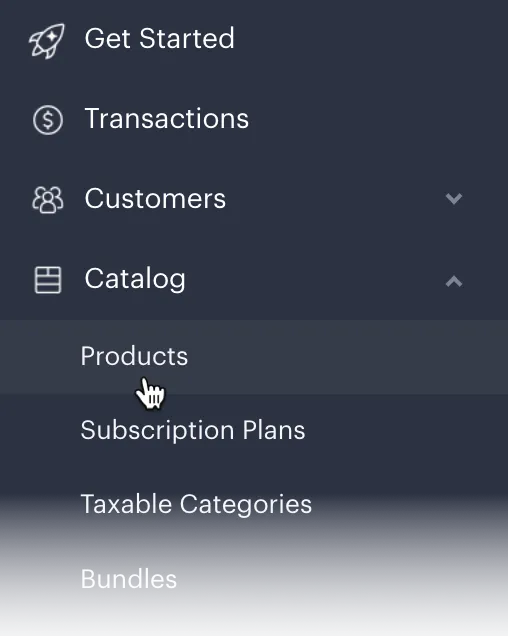
From the left-hand navigation menu, select Catalog and then Products:
-
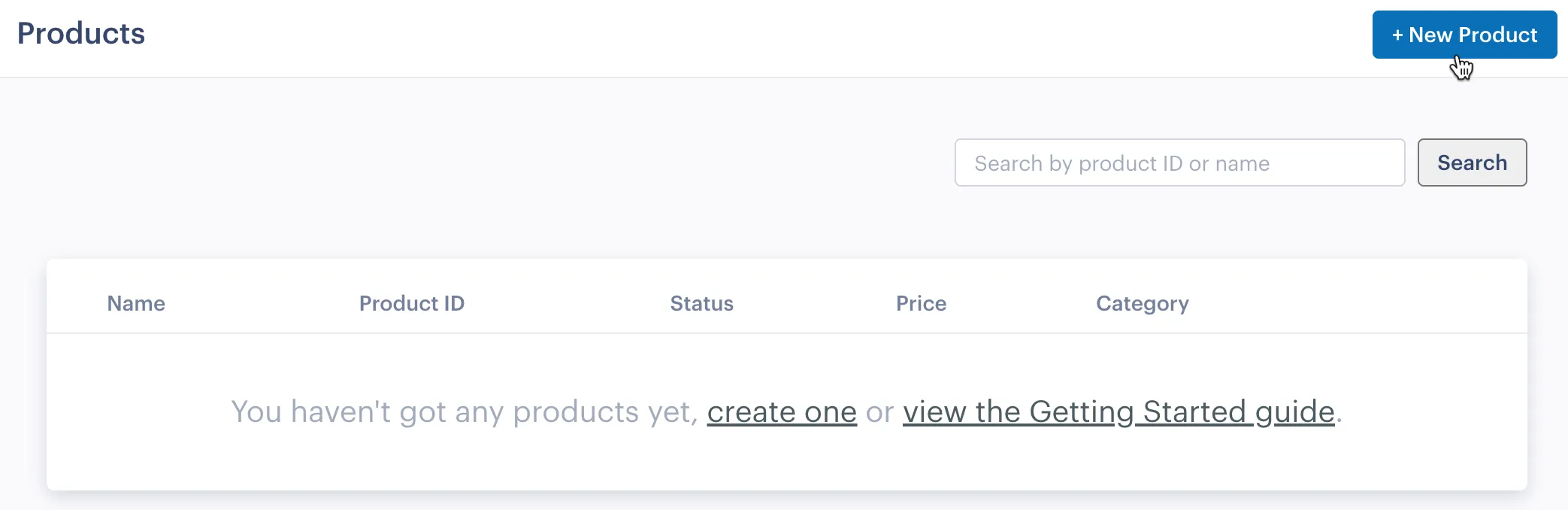
Click the New Product button:
-
Complete details for your new product:
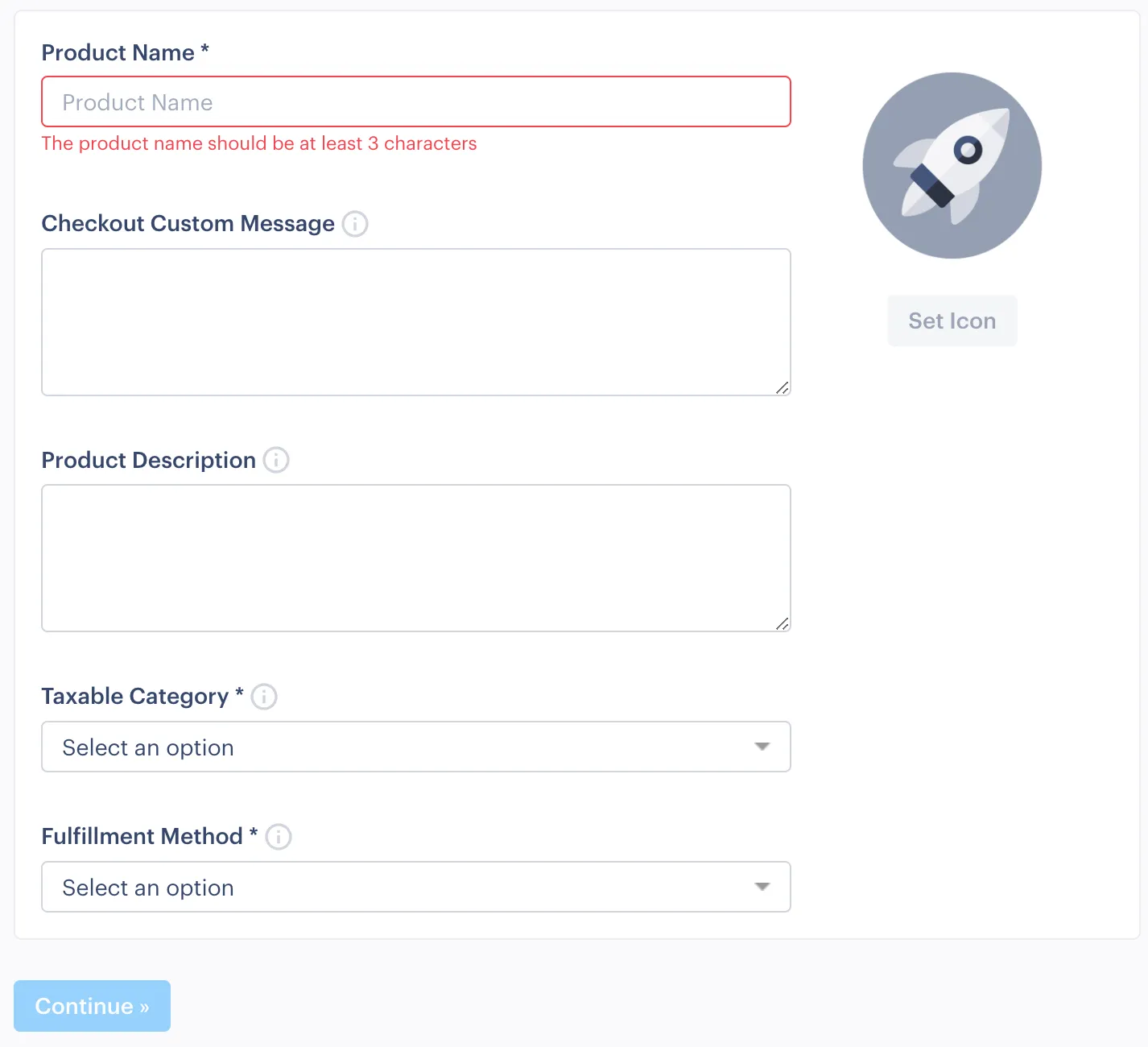
See notes below for guidance (you can also hover your cursor over tooltips for each field):
| Field | Summary |
|---|---|
| Product Name | Enter the name by which this item will be known throughout Paddle. |
| Product Icon | Upload an icon for this product, to be included in any checkout for this product. |
| Taxable Category | Select Standard Digital Goods. This is the only option shown and is fine for the purposes of this exercise. Additional options can be requested later if you find that the Standard Digital Goods category does not meet your ongoing needs. |
| Fulfillment Method | Choose one of the options summarized below:
|
-
Click the Continue button to add more information about this product. Required details include Delivery, Pricing, and Post-Checkout settings.
-
The required Delivery setup will vary depending on which fulfillment method was selected above. Refer to the relevant tab below to see what’s needed for each method:
- Upload your product or provide a URL where it can be downloaded. This link will be included in the fulfillment email sent to buyers.
- Set the price in any currency you wish to support. You may also enable additional currencies - this can be set to track the value of your default currency according to the exchange rate, or you can “override” and set a specific amount for each currency.
- Optionally, add instructions to include within the fulfillment email, and specify the Thank You page URL to send your buyers to after they complete the checkout.
- Set the webhook URL to an endpoint where you can receive requests from Paddle to generate a new license code. Your endpoint will need to respond with a HTTP 200 in a timely manner.
- Click here for a list of fields sent within the webhook request, as well as optional custom fields.
- Upload your product or provide a URL where it can be downloaded. This link will be included in the fulfillment email sent to buyers.
- Set the price in any currency you wish to support. You may also enable additional currencies - this can be set to track the value of your default currency according to the exchange rate, or you can “override” and set a specific amount for each currency.
- Optionally, add activation instructions to include within the fulfillment email, and specify the Thank You page URL to send your buyers to after they complete the checkout.
- Add licenses by clicking “Upload license codes …” - licenses must be in a plain text document (
.txt) file and separated by newlines. - Upload your product or provide a URL where it can be downloaded. This link will be included in the fulfillment email sent to buyers.
- Set the price in any currency you wish to support. You may also enable additional currencies - this can be set to track the value of your default currency according to the exchange rate, or you can “override” and set a specific amount for each currency.
- Optionally, add activation instructions to include within the fulfillment email, and specify the Thank You page URL to send your buyers to after they complete the checkout.
- SDK products need to be activated by an API request from your Paddle SDK integrated application before they can be released. Follow the setup instructions here to integrate the SDK and complete the activation request.
- Upload your product or provide a URL where it can be downloaded. This link will be included in the fulfillment email sent to buyers.
- Set the price in any currency you wish to support. You may also enable additional currencies - this can be set to track the value of your default currency according to the exchange rate, or you can “override” and set a specific amount for each currency.
- Optionally, add activation instructions to include within the fulfillment email, and specify a Thank You page URL (to which buyers are directed upon completion of their checkout).
- The final stage of product setup is Release. If a Release button is available at the end of your product setup page, it means all required information has been provided and the product can be released for use:
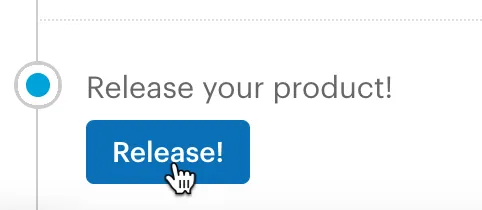
If there’s no Release button, check that you’ve provided all required information for the selected Fulfillment Method.
Next steps
Section titled “Next steps”| Task | Section |
|---|---|
| Connect a Paddle checkout | The Paddle checkout |
Learning
Section titled “Learning”| Resource | Summary |
|---|---|
| Taxable categories | Learn more about taxable categories are and which options are available. |
| One-off purchase alerts | Find out about purchase alerts for one-time products. |
| Order fulfillment webhooks | Find out more about defining fulfillment webhooks for one-time products defined with a Fulfillment Method of Server Notification. |
| Product API endpoints | Take a deep dive into the Paddle API to find out how you can integrate Paddle functionality for one-time products with your own platform. |