

Inline checkout
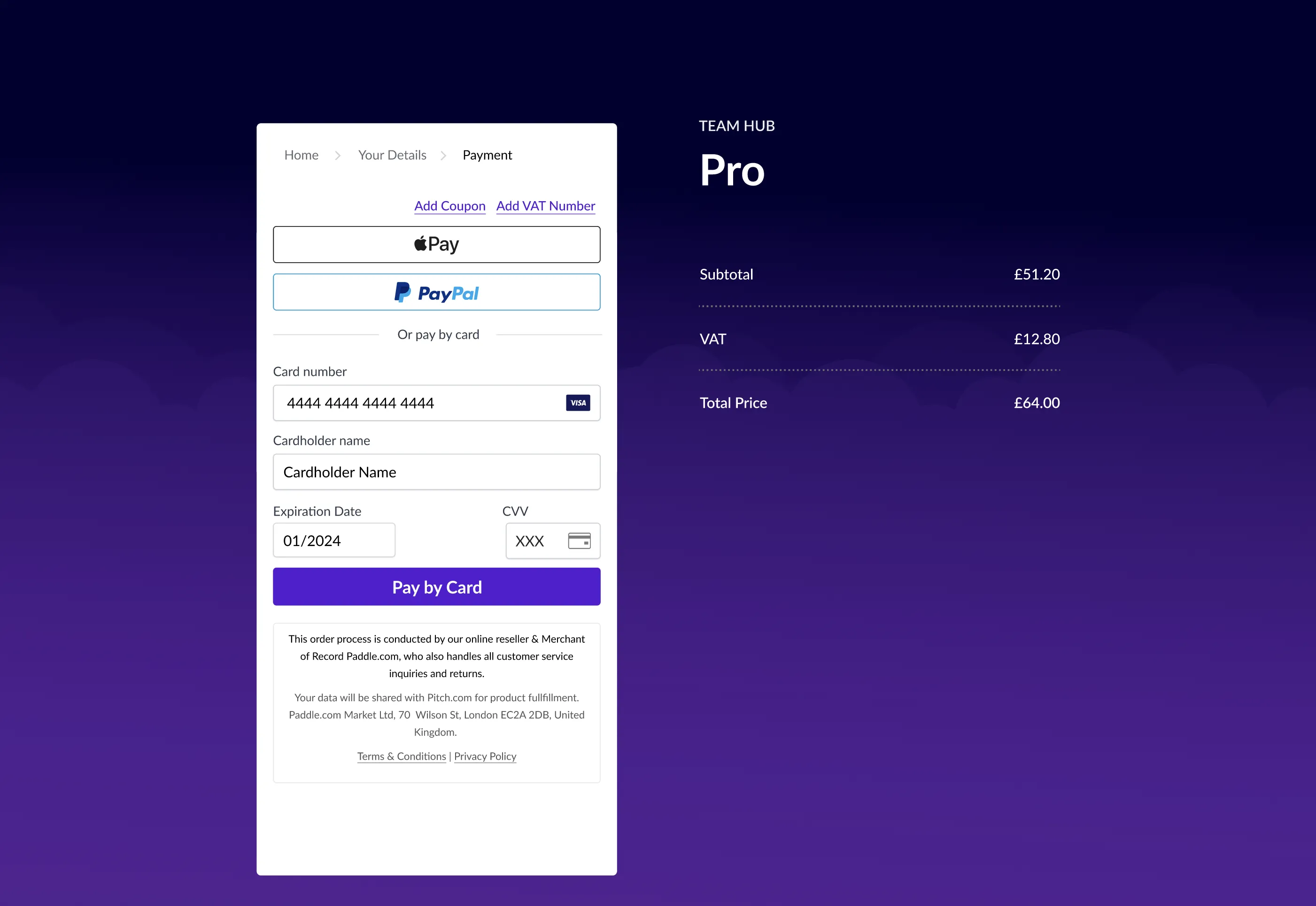
Inline checkout works by embedding an iframe on your page when the checkout loads. You can customize your checkout in your Paddle account, creating an experience that matches your branding to maximize conversion.
As your customer moves through the checkout, use events to dynamically update your page. With events, you can change totals text, present relevant information, or build breadcrumbs to highlight the journey through checkout.
Before you begin
Section titled “Before you begin”- Add your domains in your Paddle vendor dashboard under Checkout > Request Domain Approval.
- Create a one-time product or subscription plan in your Paddle dashboard.
Get started
Section titled “Get started”Implement inline checkout in four steps:
Set up Paddle.js
Section titled “Set up Paddle.js”Paddle.js is a JavaScript library that lets you build rich, integrated buyer experiences on top of Paddle.
Include Paddle.js
Section titled “Include Paddle.js”To start building a checkout, include Paddle.js on your page:
<script src="https://cdn.paddle.com/paddle/paddle.js"></script>Pass your vendor ID
Section titled “Pass your vendor ID”Your Vendor ID lets Paddle.js know which Paddle account this checkout is for.
Pass your vendor ID in the Paddle.Setup() method:
<script src="https://cdn.paddle.com/paddle/paddle.js"></script><script type="text/javascript"> Paddle.Setup({ vendor: 1234567 }); // replace with your vendor ID</script>Set sandbox environment (optional)
Section titled “Set sandbox environment (optional)”If you’re testing in the Paddle sandbox, use the Paddle.Environment.set() method to set your environment to sandbox.
<script src="https://cdn.paddle.com/paddle/paddle.js"></script><script type="text/javascript"> Paddle.Setup({ vendor: 1234567 }); // replace with your vendor ID Paddle.Environment.set("sandbox"); // only include if testing in sandbox</script>You don’t need to set an environment if you’re live.
Embed inline checkout
Section titled “Embed inline checkout”Use the Paddle.Checkout.open() method to open your checkout.
Pass essential parameters
Section titled “Pass essential parameters”Pass in parameters to tell Paddle where to display the inline checkout iframe, style and size, and product information:
type: objectproperties:  frameTarget:    type: string    description: |-      Class name of the `<div>` element where the checkout should be rendered.
      Note: only set this if `method` is set to `inline`.    examples:      - checkout-container  frameStyle:    type: string    format: css    description: |-      Styles to apply to the checkout `<div>`. `min-width` must be set to `286px` or above with checkout padding off; `312px` with checkout padding on. Use `frameInitialHeight` to set height.
      Note: only set this if `method` is set to `inline`.    examples:      - "min-width: 286px;background-color:transparent;"      - "min-width: 312px;background-color:transparent;"  frameInitialHeight:    type: integer    description: |-      Height in pixels of the `<div>` on load. Do not include `px`. Recommended `450`.
      Note: only set this if `method` is set to `inline`.    examples:      - "450"  product:    type:      - integer      - string    description: "ID of the product, subscription, or bundle that this checkout is for. Required if `passthrough` is not set."    pattern: \d+  method:    type: string    enum:      - inline      - overlay      - sdk    description: Display mode that the checkout should use.    default: overlayrequired:  - frameTarget  - frameStyle  - frameInitialHeight
Make sure that your checkout frame height has enough space to grow to avoid scrollbars. The height of the frame depends on the number of payment methods you have:
| Number of payment methods | Minimum recommended height |
|---|---|
| 1 | 517px |
| 2 | 621px |
| 3 | 669px |
| 4+ | 808px |
In this example, we pass the essential parameters to Paddle.Checkout.Open():
<html>  <head>    <title>My Checkout</title>    <meta charset="utf-8" />    <script src="https://cdn.paddle.com/paddle/paddle.js"></script>  </head>  <body>    <div class="checkout-container"></div>    <script type="text/javascript">      Paddle.Setup({        vendor: 1234567, // replace with your vendor ID      });
      Paddle.Checkout.open({        method: "inline", // set to `inline`        product: 12345, // replace with a product ID or plan ID        allowQuantity: false,        disableLogout: true,        frameTarget: "checkout-container", // className of your checkout <div>        frameInitialHeight: 450, // `450` or above        frameStyle:          "width:100%; min-width:312px; background-color: transparent; border: none;", // `min-width` must be set to `286px` or above with checkout padding off; `312px` with checkout padding on.      });    </script>  </body></html>
Pass recommended parameters
Section titled “Pass recommended parameters”The Paddle checkout is a two-step process:
- The first step asks for the customer’s location and email address.
- The second step asks for payment information.
If you have your customer’s location and email address, you can prefill this information. The checkout opens on a page asking for payment details, making for a simple one-page checkout experience.
type: objectproperties: email: type: string description: Prefill the customer email field on the checkout. format: email country: type: string description: "Prefill the customer country field on the checkout. Requires `email` to be prefilled. See: [Supported countries](/reference/platform-parameters/supported-countries)" pattern: "[A-Z]{2}" example: US postcode: type: string description: "Prefill customer 'ZIP/Postcode' field on the checkout. Requires `country` to be prefilled. See: [Supported countries](/reference/platform-parameters/supported-countries)"Handle checkout loading
Section titled “Handle checkout loading”You can load inline checkout when the page loads or in response to an event. There may be a slight delay before it’s rendered after the main page content has loaded.
If you like, you can use the loadCallback parameter to trigger a function when the checkout is opened. For example, you could show a spinner or progress bar while the checkout initializes.
Show and update sale information
Section titled “Show and update sale information”The inline checkout iframe doesn’t include a breakdown of items. It’s designed to handle capturing customer and payment information, giving you the flexibility to show information about what your customer is buying elsewhere on the page.
On your page, you’ll need to show:
- Product name or subscription plan name
- Product price or subscription plan price and billing period
- Quantity information, if required
This information may change as a customer moves through the checkout process. For example, if a customer adds a coupon or VAT number, then prices and totals may change.
In this example, we show and update net price, sales tax amount, total price, and subscription billing periods in response to changes in the checkout — including changing currency:
<html>  <head>    <title>My Checkout</title>    <meta charset="utf-8" />    <script src="https://cdn.paddle.com/paddle/paddle.js"></script>  </head>  <body>    <div>      Subtotal: <span class="currency">US$</span><span id="subtotal">0.00</span>    </div>    <div>Tax: <span class="currency">US$</span><span id="tax">0.00</span></div>    <div>      Total: <span class="currency">US$</span><span id="total">0.00</span>    </div>    <div id="recurringPrice"></div>    <div class="checkout-container"></div>    <script type="text/javascript">      Paddle.Setup({        vendor: 1234567, // replace with your vendor ID        eventCallback: function (eventData) {          updatePrices(eventData);        },      });
      function updatePrices(data) {        var currencyLabels = document.querySelectorAll(".currency");        var subtotal =          data.eventData.checkout.prices.customer.total -          data.eventData.checkout.prices.customer.total_tax;
        for (var i = 0; i < currencyLabels.length; i++) {          currencyLabels[i].innerHTML =            data.eventData.checkout.prices.customer.currency + " ";        }
        document.getElementById("subtotal").innerHTML = subtotal.toFixed(2);        document.getElementById("tax").innerHTML =          data.eventData.checkout.prices.customer.total_tax;        document.getElementById("total").innerHTML =          data.eventData.checkout.prices.customer.total;
        if (data.eventData.checkout.recurring_prices) {          var recurringCurrency =            data.eventData.checkout.recurring_prices.customer.currency;          var recurringTotal =            data.eventData.checkout.recurring_prices.customer.total;          var intervalType =            data.eventData.checkout.recurring_prices.interval.type;          var intervalCount =            data.eventData.checkout.recurring_prices.interval.length;
          if (intervalCount > 1) {            var recurringString =              '<div class="is-line-label">Then</div><div class="is-line-value">' +              recurringCurrency +              " " +              recurringTotal +              " / " +              intervalCount +              " " +              intervalType +              "s</div>";          } else {            var recurringString =              '<div class="is-line-label">Then</div><div class="is-line-value">' +              recurringCurrency +              " " +              recurringTotal +              " / " +              intervalType +              "</div>";          }
          document.getElementById("recurringPrice").innerHTML = recurringString;        }      }
      Paddle.Checkout.open({        method: "inline", // set to `inline`        product: 12345, // replace with a product ID or plan ID        allowQuantity: false,        disableLogout: true,        frameTarget: "checkout-container", // className of your checkout <div>        frameInitialHeight: 450, // 450 or above        frameStyle:          "width:100%; min-width:312px; background-color: transparent; border: none;", // `min-width` must be set to `286px` or above with checkout padding off; `312px` with checkout padding on.      });    </script>  </body></html>
Brand your checkout
Section titled “Brand your checkout”Inline checkout comes with over 50 styling options to let you create a checkout experience that’s fully integrated. You can change colors, borders, shadows, text, and other options directly from your Paddle dashboard — no engineering resource needed.
Get started
Section titled “Get started”Go to Checkout > Branded Inline Checkout in your Paddle dashboard to get started.
For the best editing experience, we recommend using a monitor with a screen resolution of at least 1284px wide. This means you’ll be able to see the styling options and preview side-by-side.
General
Section titled “General”The first set of options in the General section lets you change:
- font
- focus state of fields
- checkout padding
The default font is Lato, a popular humanist font that fits into most designs. You can choose from a selection of system fonts instead. If your chosen font can’t be loaded on your customer’s device, Paddle falls back to Helvetica Neue, Helvetica, Arial, then the system default sans-serif.
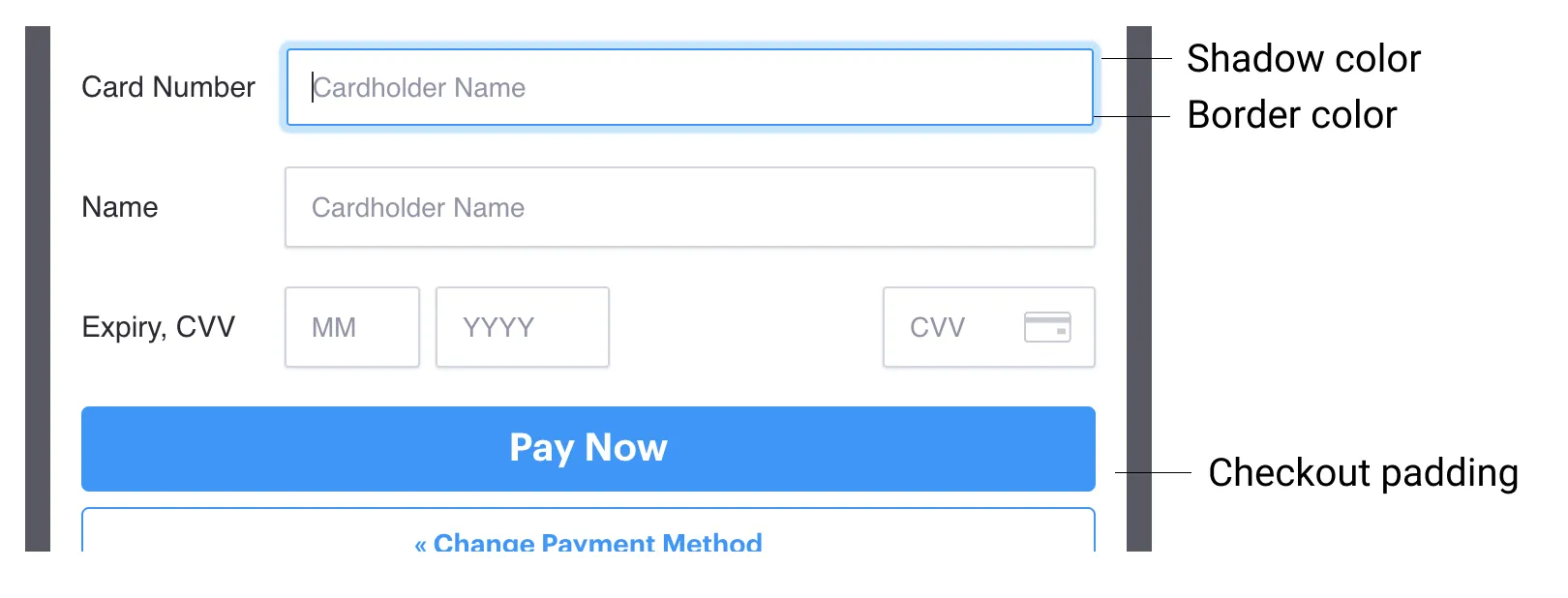
The focus state of fields determines the border color and shadow when a field is selected.
Checkout padding is on by default. Turn it off to let your checkout fill the full width of the iframe, which may be useful if you have your own padding set on your website.
Buttons
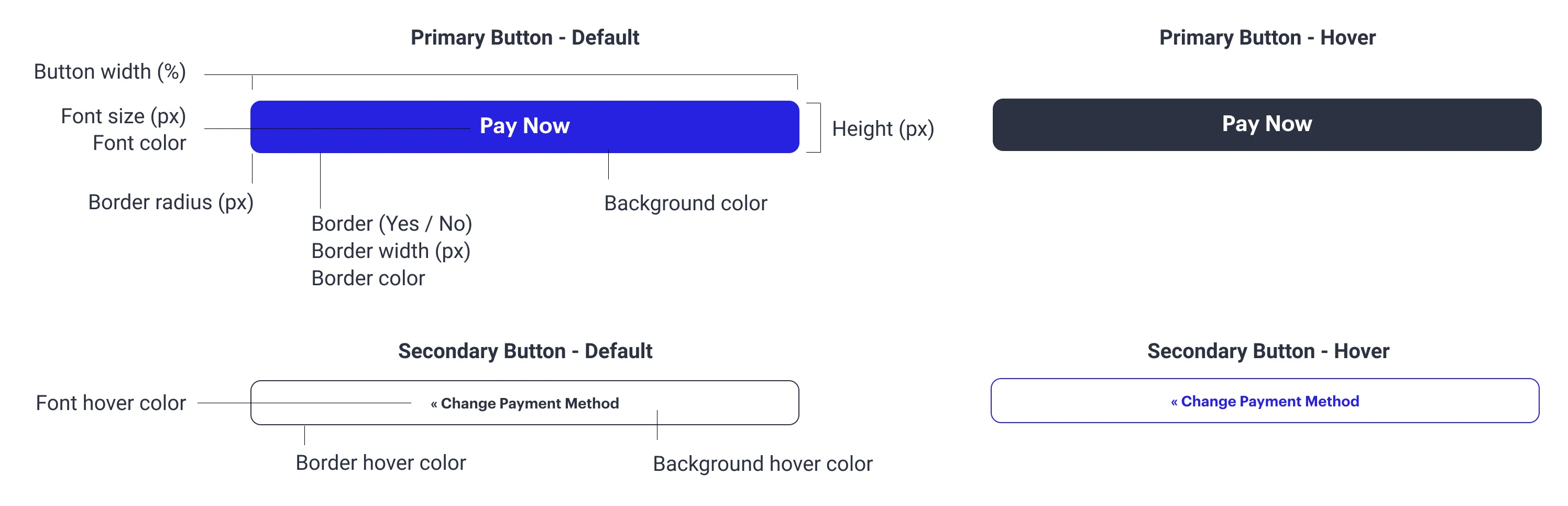
Section titled “Buttons”Some buttons are shown as part of checkout, for example:
- Pay Now
- Subscribe Now
- Pay by Card
- Change Payment Method
- Cancel
You can customize button size, text, color, and design using the options in the Button section.
Inputs
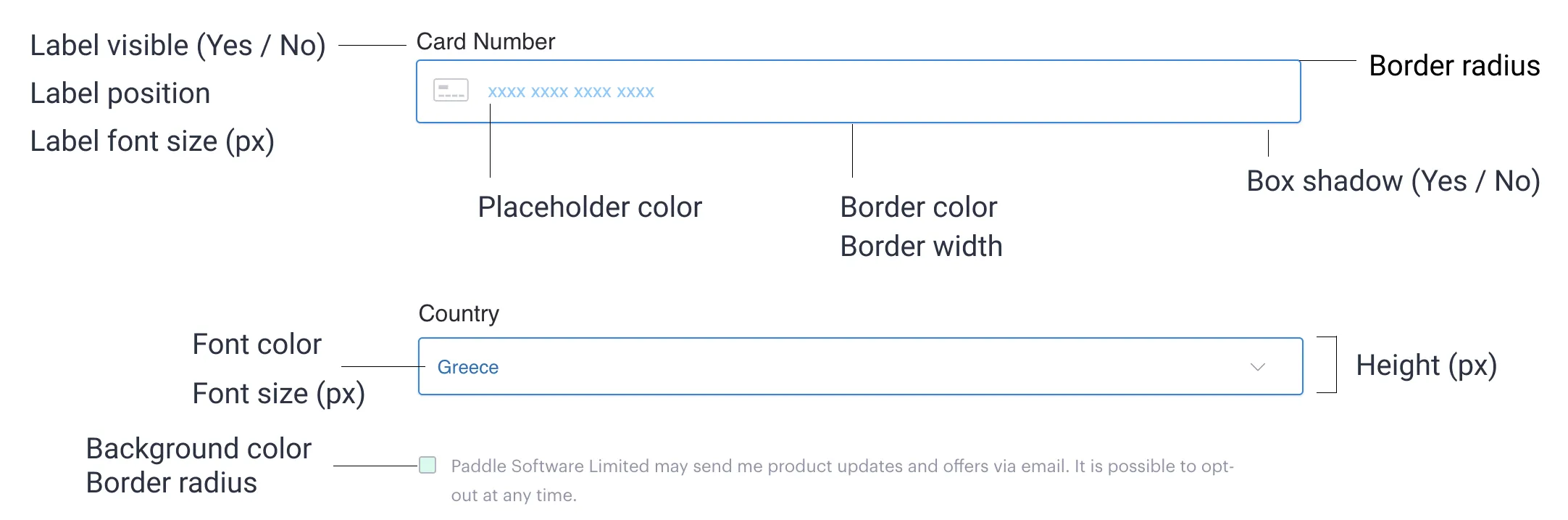
Section titled “Inputs”Inputs are fields where customers enter their details. This includes the labels (e.g. “Cardholder name”) and input boxes themselves.
You can turn off labels altogether for a more compact design. Labels show inside their respective fields until clicked.
Inline checkout includes links for:
- Add Coupon
- Add a VAT number
Change the style of these using the options in the Links section.

Messages
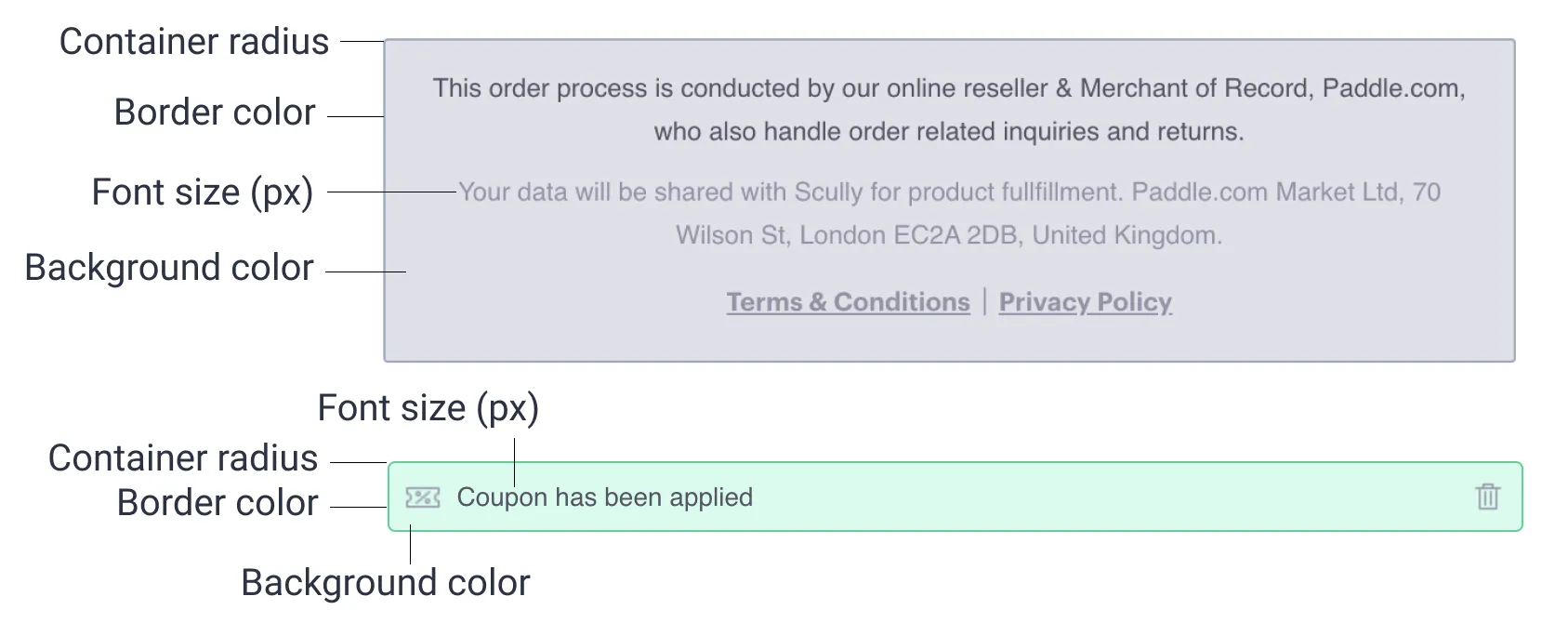
Section titled “Messages”The messages section lets you style:
- The Paddle merchant of record footer message
- The notification that appears when a coupon has been applied successfully
Next steps
Section titled “Next steps”- If you’re testing in the sandbox, prepare to go live.
- Streamline the checkout process for buyers by passing parameters.
- Learn more about the other methods available in Paddle.js.