

Mac SDK setup
Requirements
Section titled “Requirements”- The Mac v4 SDK requires High Sierra (OS X 10.13) or above
- The SDK is written in Objective-C but also has a Swift interface
- The user’s OS must support TLS 1.2
Downloads
Section titled “Downloads”Overview
Section titled “Overview”Paddle’s Mac SDK has two primary components: the main Paddle class where most functions are centralized and the PADProduct class which represents a Paddle product for you to work with them in your app.
Paddle Singleton (Paddle)
Section titled “Paddle Singleton (Paddle)”- The base class of the Paddle SDK. This is responsible for configuration and control, initialize the SDK, control the UI, and trigger actions like license recovery.
Paddle Product (PADProduct)
Section titled “Paddle Product (PADProduct)”- A local representation of a Paddle product or subscription, with details including remaining trial days, activation date, prices and actions on the Product to refresh its data from the seller dashboard and verify or deactivate a license.
- Paddle Products have a dependency on the Paddle Singleton, please ensure you initialize the singleton first.
- You can have multiple PADProduct instances for multiple product IDs instantiated at once.
Xcode Setup
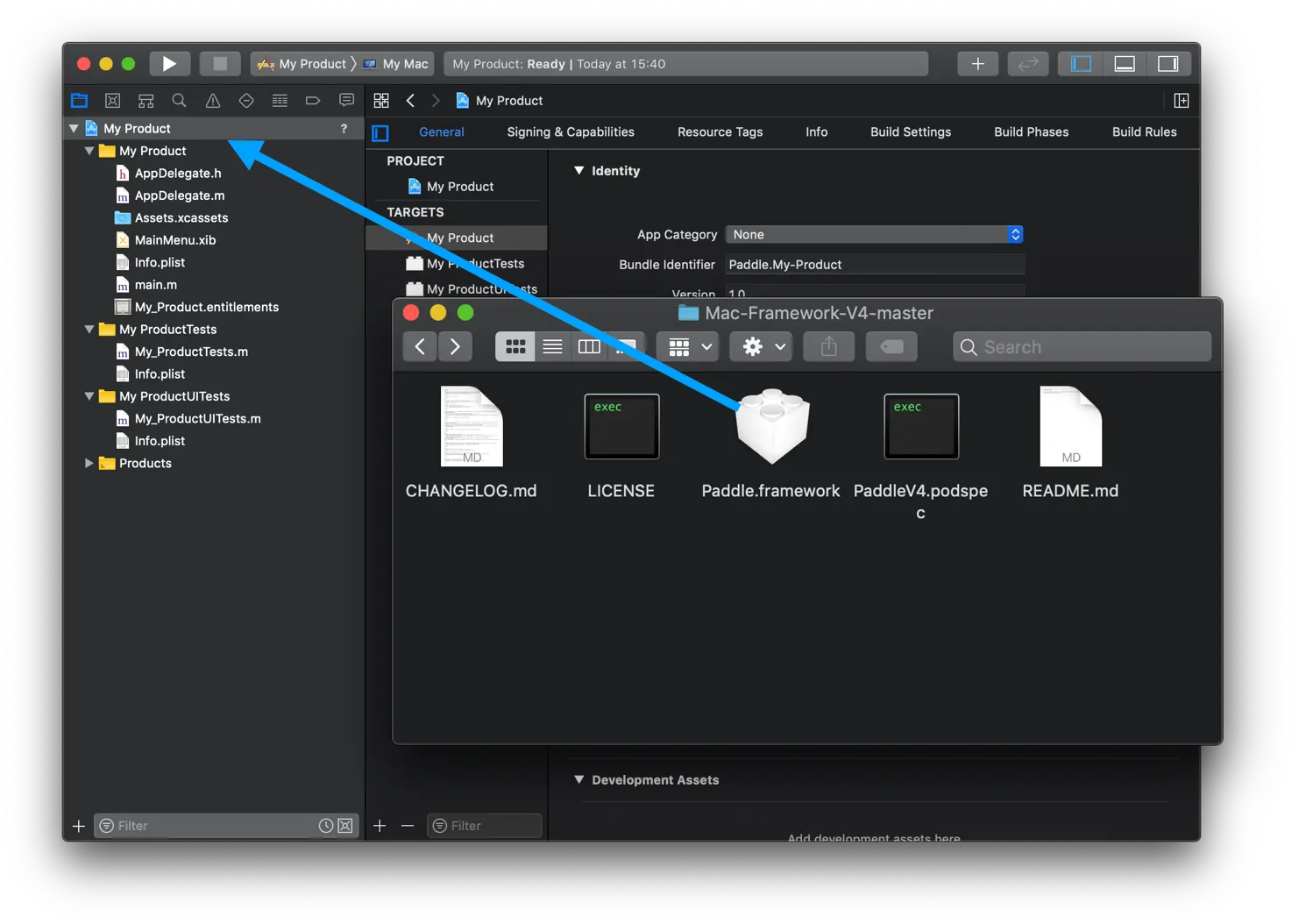
Section titled “Xcode Setup”1. Add to Project
Section titled “1. Add to Project”Add the Paddle framework to your Xcode project by dragging from the Finder.
2. Add to Target
Section titled “2. Add to Target”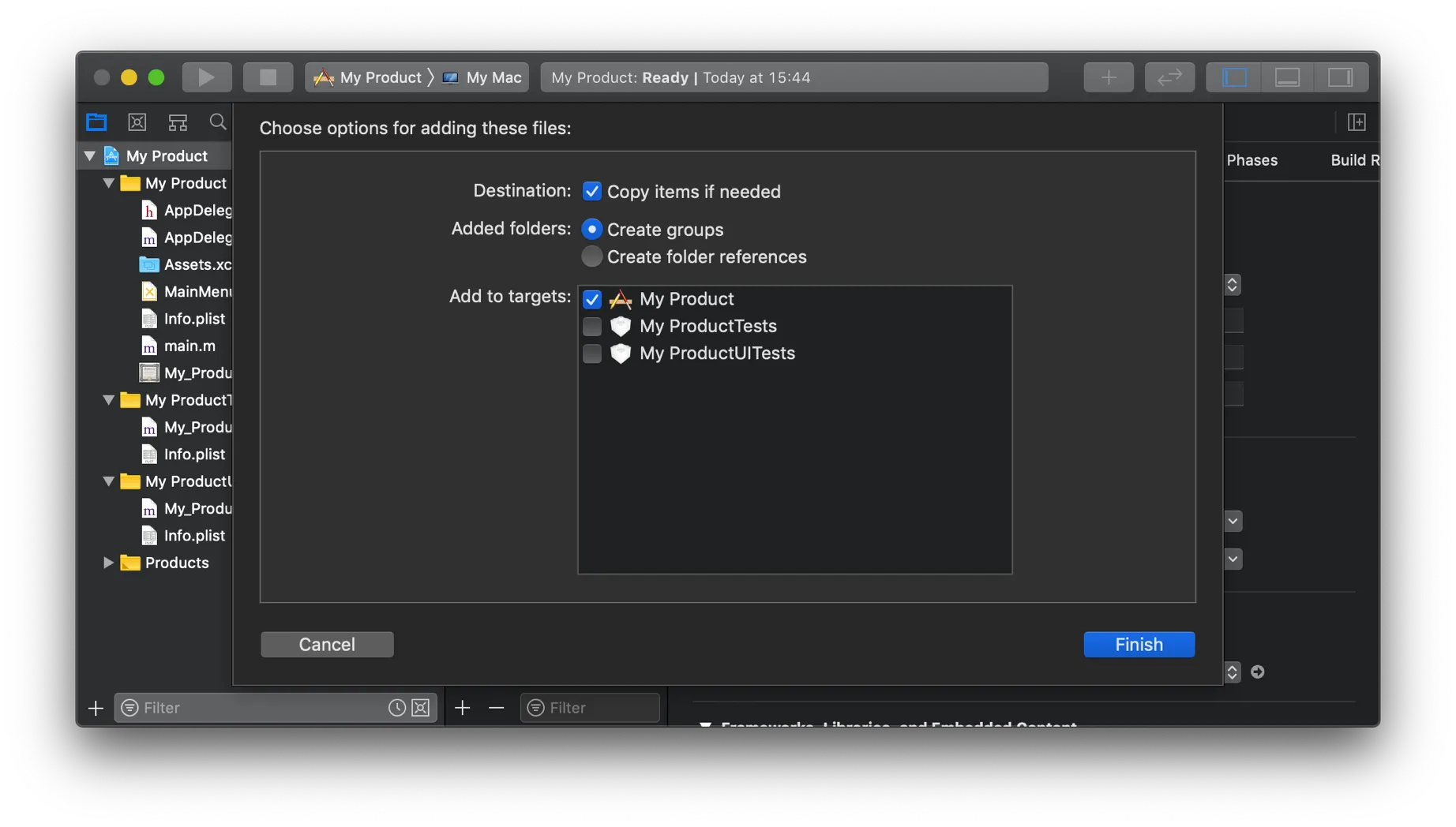
3. Copy Files
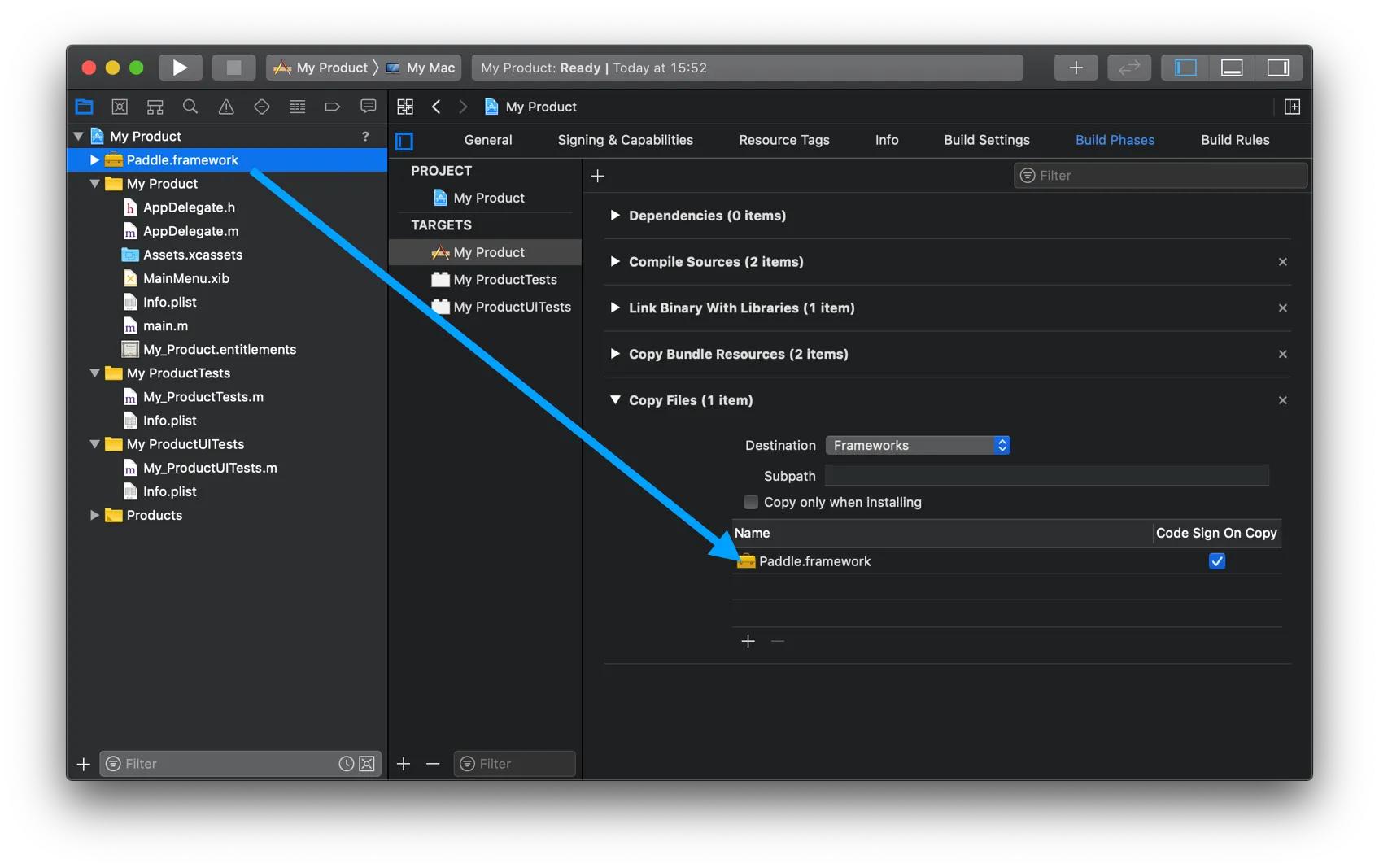
Section titled “3. Copy Files”Within Build Phases add a build phase (New Copy Files Build Phase). Make sure Destination is set to Frameworks.
4. Sandbox Settings
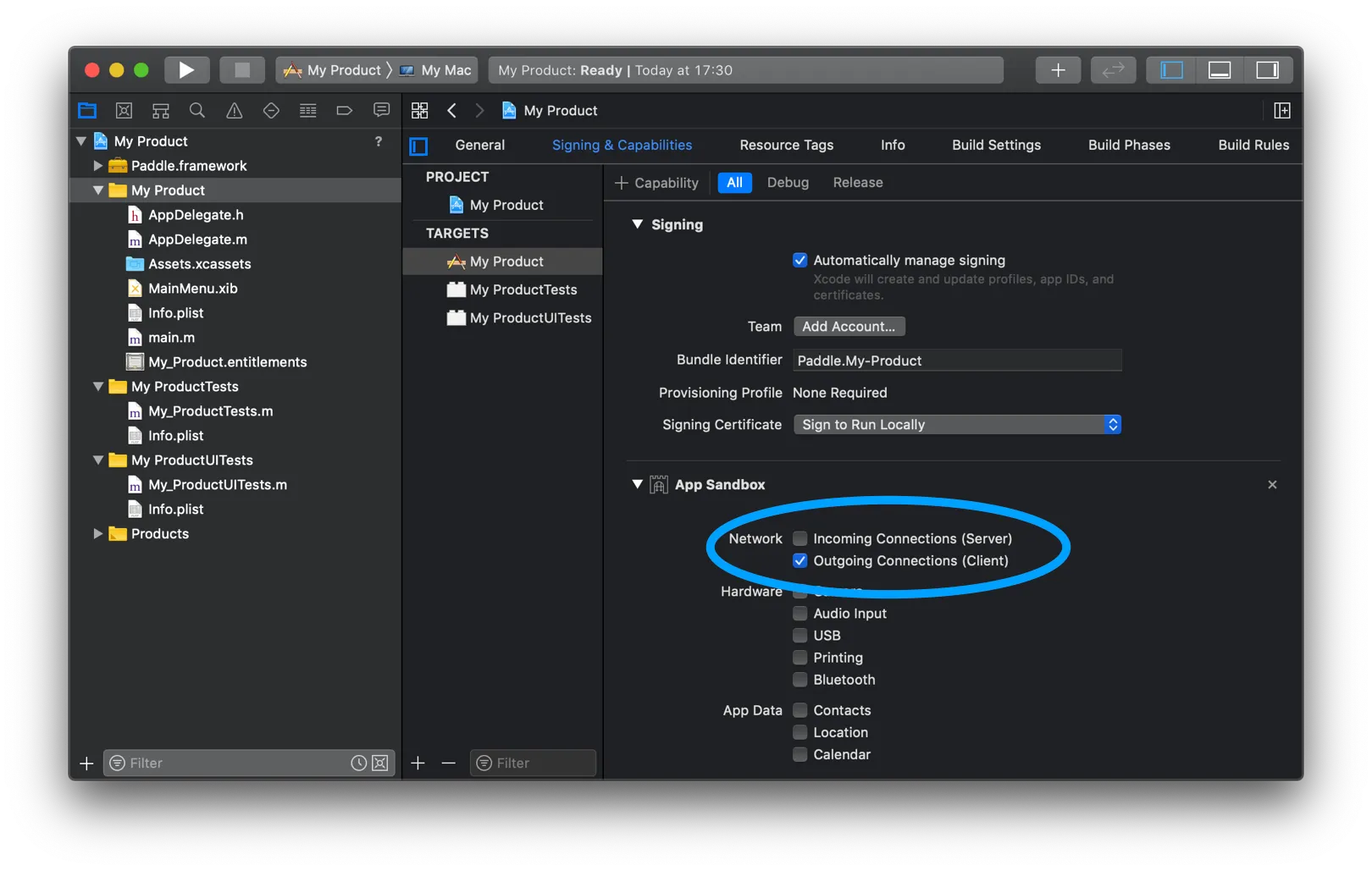
Section titled “4. Sandbox Settings”If your app is sandboxed you should enable “Outgoing Connections (Client)” in your Signing & Capabilities tab to allow the framework to send data to Paddle.
5. Hardened Runtime Settings
Section titled “5. Hardened Runtime Settings”If your app has hardened runtime, you will need to enable “Allow Execution of JIT-compiled Code” in your Signing & Capabilities tab to allow the framework to work correctly.
6. Initialize Product
Section titled “6. Initialize Product”The Paddle SDK requires that you initialize it with an SDK Product, which you’ll need to create via the Vendor Dashboard. Once initialized you can work with any type of Product or Subscription, we’ll never assume the SDK Product used to initialize the SDK is the relevant one.
Import the Paddle Singleton to your class:
@import Paddle// or#import <Paddle/Paddle.h>@import PaddleThen configure and initialize the SDK and your Product.
// Your Paddle SDK Config from the Vendor DashboardNSString *myPaddleVendorID = @"12345";NSString *myPaddleProductID = @"678910";NSString *myPaddleAPIKey = @"1234abc5678defg";
// Default Product Config in case we're unable to reach our servers on first runPADProductConfiguration *defaultProductConfig = [[PADProductConfiguration alloc] init];defaultProductConfig.productName = @"My v4 Product";defaultProductConfig.vendorName = @"My Company";
// Initialize the SDK singleton with the configPaddle *paddle = [Paddle sharedInstanceWithVendorID:myPaddleVendorID                                             apiKey:myPaddleAPIKey                                          productID:myPaddleProductID                                      configuration:defaultProductConfig                                           delegate:nil];
// Initialize the Product you'd like to work withPADProduct *paddleProduct = [[PADProduct alloc] initWithProductID:myPaddleProductID                                                      productType:PADProductTypeSDKProduct                                                    configuration:defaultProductConfig];
// Ask the Product to get its latest state and info from the Paddle Platform[paddleProduct refresh:^(NSDictionary * _Nullable productDelta, NSError * _Nullable error) {  // Optionally show the default "Product Access" UI to gatekeep your app  [paddle showProductAccessDialogWithProduct:paddleProduct];}];
// Your Paddle SDK Config from the Vendor Dashboardlet myPaddleVendorID = "12345"let myPaddleProductID = "678910"let myPaddleAPIKey = "1234abc5678defg"
// Default Product Config in case we're unable to reach our servers on first runlet defaultProductConfig = PADProductConfiguration()defaultProductConfig.productName = "My v4 Product"defaultProductConfig.vendorName = "My Company"
// Initialize the SDK singleton with the configlet paddle = Paddle.sharedInstance(withVendorID: myPaddleVendorID, apiKey: myPaddleAPIKey, productID: myPaddleProductID, configuration: defaultProductConfig, delegate:nil)
// Initialize the Product you'd like to work withlet paddleProduct = PADProduct(productID: myPaddleProductID, productType: PADProductType.sdkProduct, configuration: defaultProductConfig)
// Ask the Product to get its latest state and info from the Paddle PlatformpaddleProduct?.refresh({ (delta: [AnyHashable : Any]?, error: Error?) in // Optionally show the default "Product Access" UI to gatekeep your app paddle?.showProductAccessDialog(with: paddleProduct!)})Sandbox Environment
Section titled “Sandbox Environment”You can use Paddle’s sandbox environment to test your SDK integration.
If you don’t have a sandbox account yet, you can create one here.
To use the sandbox environment on the SDK you will need to use [Paddle setEnvironmentToSandbox]; method before calling any startLicensing methods, preferably in applicationDidFinishLaunching: and change the vendor id, product id and API key to the sandbox values.
Please note that the sandbox environment only works with one-off SDK products.
- (void)applicationDidFinishLaunching:(NSNotification *)aNotification { [Paddle setEnvironmentToSandbox];}func applicationDidFinishLaunching(_ aNotification: Notification) { Paddle.setEnvironmentToSandbox()}Debug Mode
Section titled “Debug Mode”Enable Paddle’s debug mode in your app by adding the following line:
[Paddle enableDebug];Paddle.enableDebug()Debug mode prints more verbose information and error messages to the console while the app is running and also adds an additional app menu, allowing you to reset or expire app trials.