

Add a Paddle button to your web page
Your objective
Section titled “Your objective”The simplest way to trigger the Paddle checkout is to add a Paddle button to your web page, using the paddle_button class.
Here, you will add a Paddle button to your store web page and associate it with the unique ID for a one-time product or a subscription plan in your Paddle catalog.
Prerequisites
Section titled “Prerequisites”Before starting steps on this page, you must have completed the following tasks:
| Task | Section |
|---|---|
| Create a Paddle vendor account | Your Paddle account |
| Create a Paddle sandbox | Your Paddle account |
| Create a subscription plan -or- create a one-time product | Paddle catalog |
| Gather checkout details | The Paddle checkout |
| Import the Paddle JS library | The Paddle checkout |
Steps required
Section titled “Steps required”Follow steps below:
-
Add the code snippet below to the appropriate place in your test store web page:
<a href="#!" class="paddle_button" data-product="12345">Buy Now!</a>For example:
<html><head> </head><body><h2>Welcome to my web store!</h2><p>If you'd like to purchase a monthly My Awesome Subscription Plan, clickthe button below.</p><a href="#!" class="paddle_button" data-product="12345">Buy Now!</a><script src="https://cdn.paddle.com/paddle/paddle.js"></script><script type="text/javascript">Paddle.Environment.set("sandbox");Paddle.Setup({ vendor: 111111 });</script></body></html> -
Change the data-product value to a Product ID or Plan ID, as noted previously.
-
Save your web page file.
-
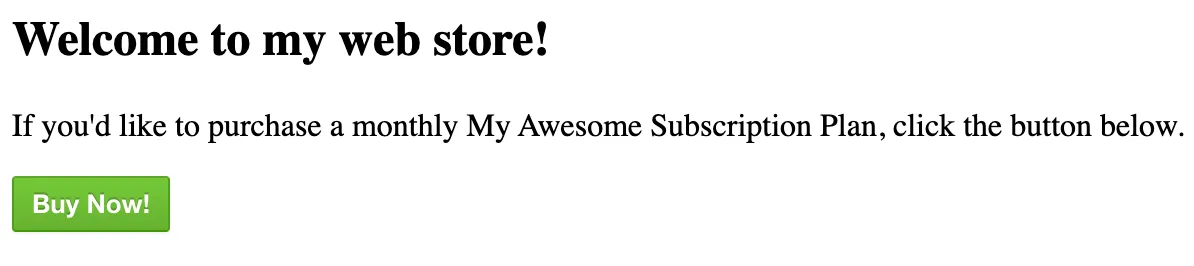
Launch the web page in your browser—you should see a green Paddle button as shown below:
-
Keep this browser page open and continue to the next steps.
Next steps
Section titled “Next steps”| Task | Section |
|---|---|
| Configure Paddle webhooks | Configure Paddle webhooks |
Learning
Section titled “Learning”| Resource | Summary |
|---|---|
| Paddle JS library Reference | Find out more about the Paddle JS library. |
| Overlay checkout | Paddle’s overlay checkout is an iframe, displayed over your webpage. Find out how to implement this for your website, here. |
| Inline checkout | Paddle’s inline checkout is embedded into your web store page for a more customizable, branded checkout flow. Find out how to implement this for your website, here. |
| Customizing the checkout with parameters | The checkout experience can be customized by passing in parameters to collect/utilize additional user data. Find out what data can be collected and how to use it, here. |
| Post-checkout behavior | Find out more about customizing the customer’s experience once a checkout is completed. |
| Checkout API endpoints | Take a deep dive into the Paddle API to find out how you can integrate Paddle checkout functionality with your platform. |